
HTML stands for Hyper Text Markup Language. It is the standard markup language for documents designed to be displayed in a web browser.
It is the language we use to define the content and structure of the web. A markup language is used to format plain text.
HTML is used alongside other supporting technologies like CSS and JavaScript.
In HTML, we will not find language constructs found in programming languages like loops and variable declaration. We simply declare elements to represent structures like text, list, image, paragraphs, links etc, to show how they should be displayed on the web.
HTML is mostly a static language, we therefore uses JavaScript to do what HTML wont do; adding interactivity in the webpage.
Tags
HTML uses tags which are keywords enclosed with brackets <>. This tags usually comes in pairs
HTML tags are usually in pairs for example <p></p> is used to represent opening and closing of a paragraph.
common tags in HTML includes:
<!DOCTYPE>
It indicates the particular version of HTML being used in the document. It helps the web browser understand the version of the HTML used in the document.
for example <!DOCTYPE HTML PUBLIC “HTML 4.01”> indicates that HTML 4 is being used.
<!DOCTYPE html> indicates HTML5 is being used.
<html>
Used to represent the root of an HTML document that are below the <!DOCTYPE> element.
It encloses the complete HTML document and mainly comprises of document header and body. You should include the lang attribute inside the <html> tag as in <html lang=”en”> to declare the language used on the web page which is a useful attribute to search engines and browsers.
<head>
Contains meta information about the HTML page. The tag holds HTML tags like <title></title> and <links></links>
<title>
Specifies a title for the HTML page which generally appears in the title bar of the web browser.
<body>
defines the document ‘s body indicates a container for for all visible contents such as paragraphs and images.
<!– – – >
It is a comment meaning it contains information that is only visible to programmer but which will not be rendered into the webpage. It allows a web author provides notes and explain what they are doing.
<Heading Tags>
They are the start point for a document. They have different sizes, about six levels with highest being <h1> and the lowest <h6>
h1 means heading 1.
browser usually add one line before and after heading.
Paragraph Tag <p>
It offers a way to structure your text into different paragraphs where each paragraph goes between <p> and </p>.
line break
It creates a new line with an element <br /> causing anything after it start on a new line. It does not need opening or closing tags as there is nothing in between it. Please not that there is a space between br and the slash / which when omitted creates problems with the older browsers when rendering the line break.
Horizontal line <hr>
They are used to visually break-up sections of a document where <hr> tag creates a line from the current position in the document to the right margin and breaks the line accordingly.
Writing your first web page
You only need a simple editor to write a web page.
Examples of text editors includes:
- Notepad
- komodo Edit
- sublime Text
- Notepad++
- Atom
- Brackets
- TextEdit
- Bluefish
- BBEdit
- vim
- JEdit
- Emacs
- Text Wrangler among others
Let us use a simple notepad that is common in most of windows computer.
go to your startup menu and type, notepad
Type the sentences between the tags as shown. Note that the last tag to use is the first one to close.
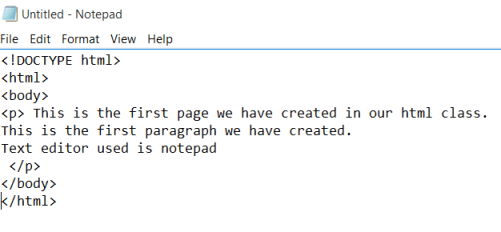
Save the file with name startingHtml.html as shown

the title bar changes from “untitled” into the name we have given it.
locate the file, right click it and open with your favorite browser.

You should see your page rendered on your browser as shown
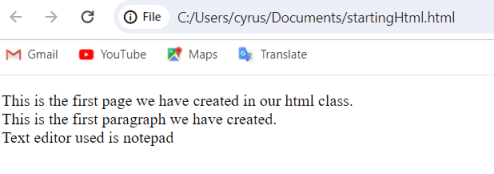
congratulations! You have created your first web page
Related topics
- Installing_git on_windows
- Basic Git Configuration
- Getting started with Git
- Version control
- Managing historical files
- Python Reserved words
- Introduction to html
- Creating a web page
- Getting started with python
- Artificial Intelligence Vocabulary
- sets